> ## Documentation Index
> Fetch the complete documentation index at: https://developers.resistant.ai/llms.txt
> Use this file to discover all available pages before exploring further.
# Using the Web UI
> How analysts review verdicts, indicators, and evidence in the hosted Web UI.
This page explains what analysts see in the **Web UI** and how to use it to review Document Forensics results efficiently.
For access and deep links, see [Accessing the Web UI](./access).
## What analysts see (UI layout)
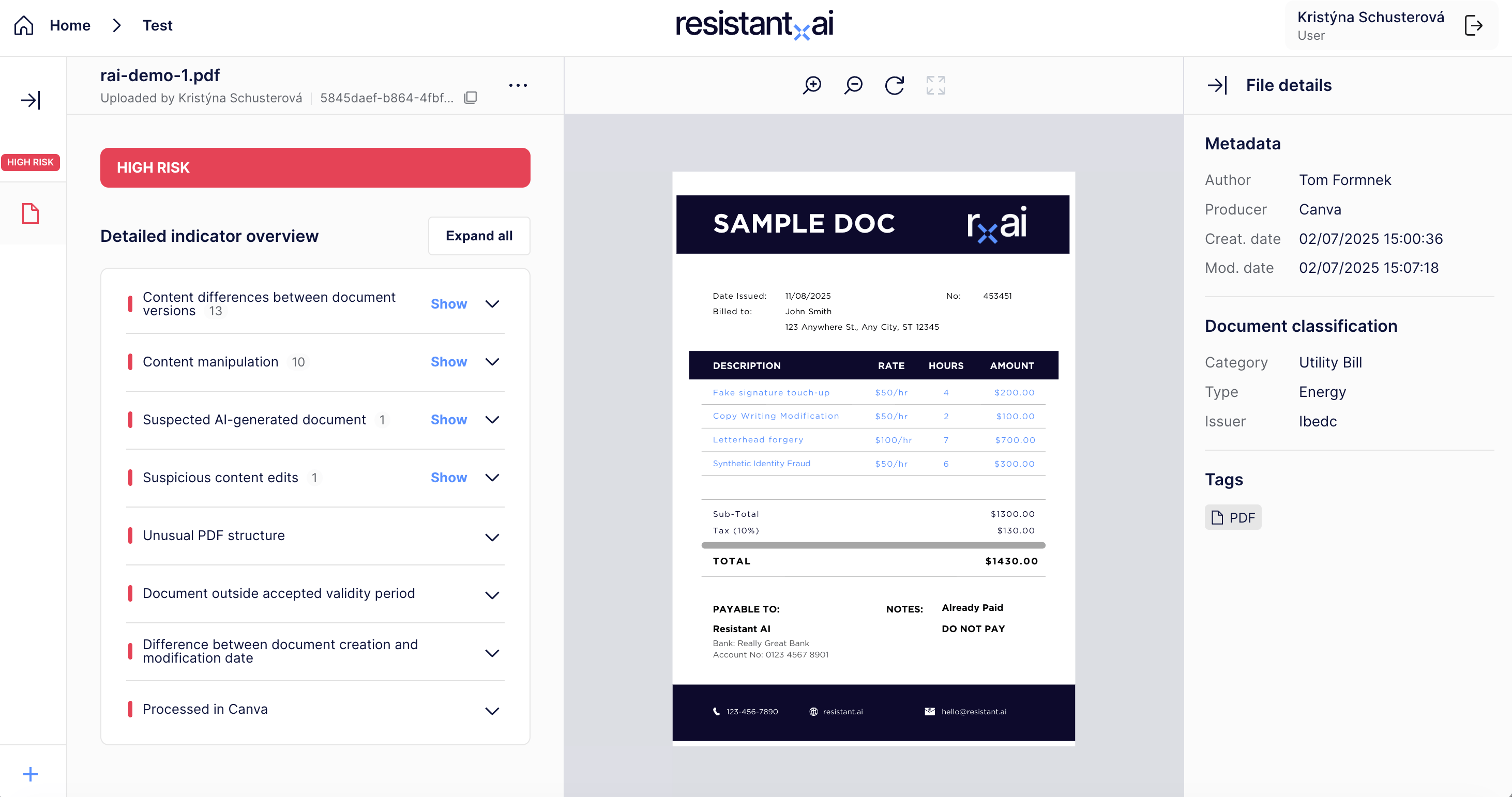 ### 1) Document preview (center)
* The original document is displayed in the main viewing area.
* Analysts use this to visually inspect the document while reviewing findings.
### 2) Verdict summary
* The UI shows the overall risk/verdict for the document.
* Use this as a triage signal to prioritize review.
### 3) Indicators list
* The UI lists detected indicators (risk, trust, info).
* Analysts can expand indicators to see details and supporting context.
Start with the highest-impact indicators first (typically those associated with elevated risk).
### 4) Indicator visualization (“Show”)
Many indicators support a **Show** interaction that highlights relevant area(s) in the document view. This is the fastest way to connect a finding to evidence.
### 1) Document preview (center)
* The original document is displayed in the main viewing area.
* Analysts use this to visually inspect the document while reviewing findings.
### 2) Verdict summary
* The UI shows the overall risk/verdict for the document.
* Use this as a triage signal to prioritize review.
### 3) Indicators list
* The UI lists detected indicators (risk, trust, info).
* Analysts can expand indicators to see details and supporting context.
Start with the highest-impact indicators first (typically those associated with elevated risk).
### 4) Indicator visualization (“Show”)
Many indicators support a **Show** interaction that highlights relevant area(s) in the document view. This is the fastest way to connect a finding to evidence.
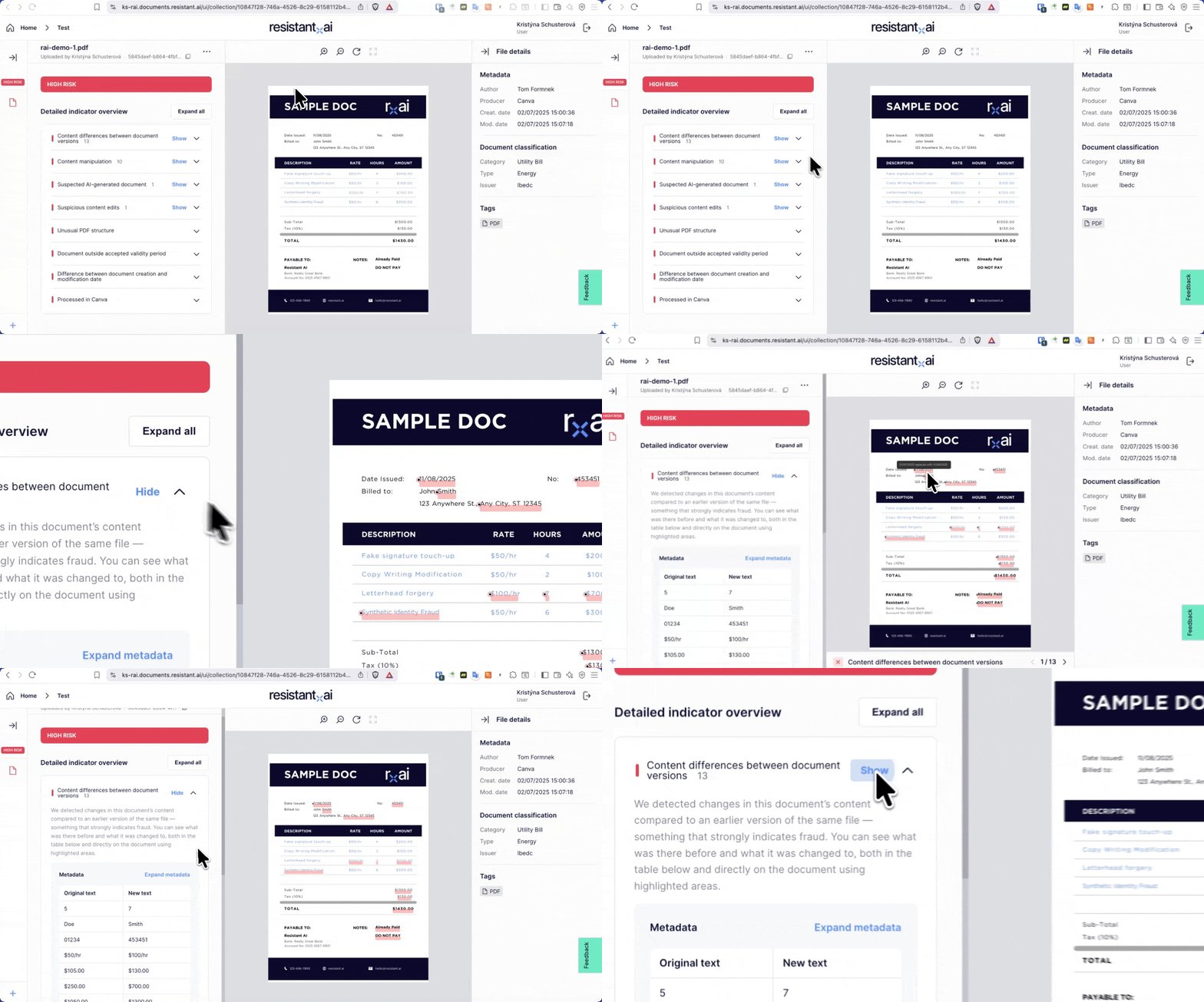 Not all indicators support visualization. If there is no **Show** action, review the indicator text and metadata instead.
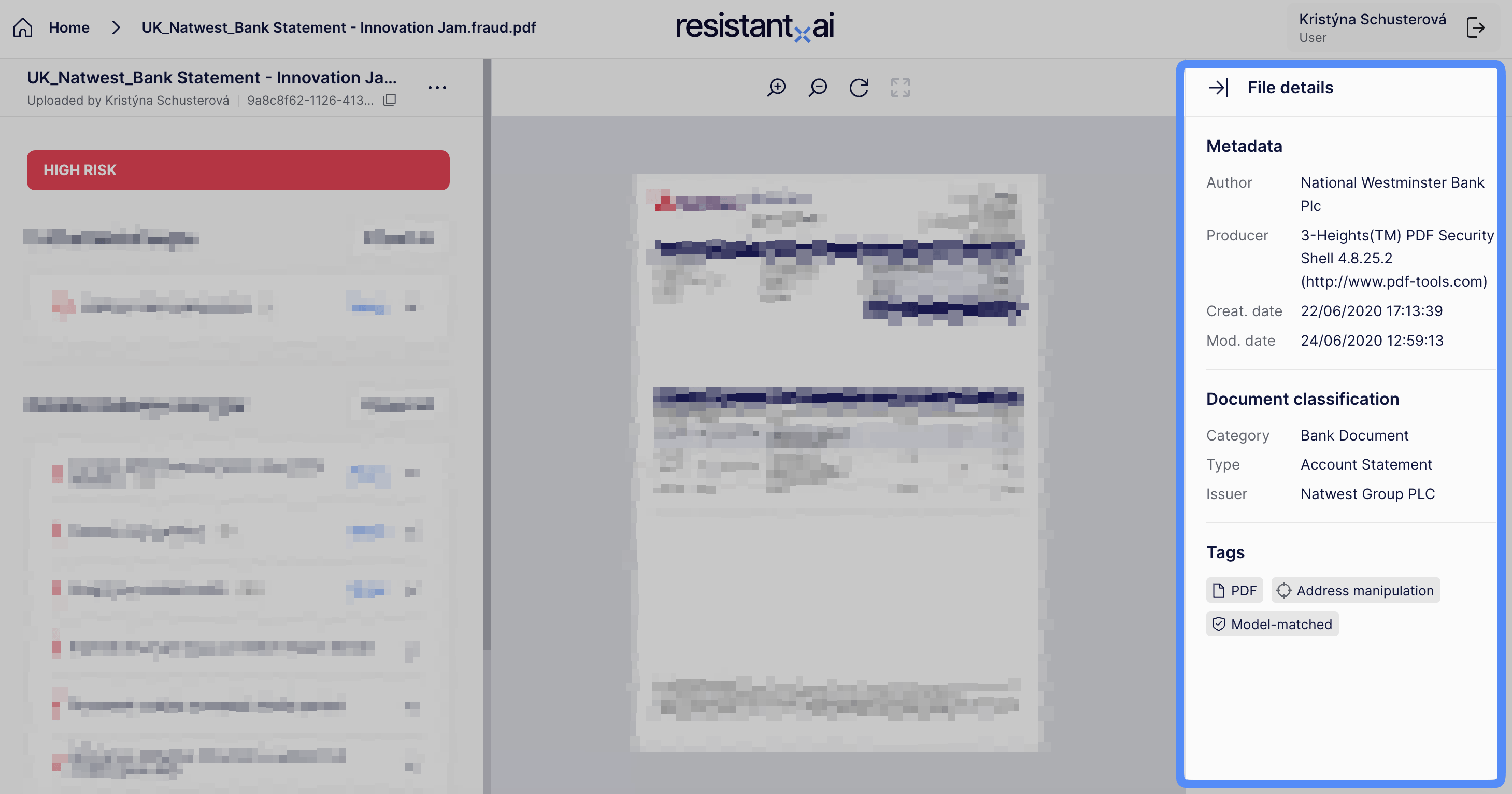
### 5) Metadata and classification
* Displays extracted metadata and classification-related information (where available).
* Useful for sanity checks and understanding context (e.g., producer/creator metadata, classification output).
Not all indicators support visualization. If there is no **Show** action, review the indicator text and metadata instead.
### 5) Metadata and classification
* Displays extracted metadata and classification-related information (where available).
* Useful for sanity checks and understanding context (e.g., producer/creator metadata, classification output).
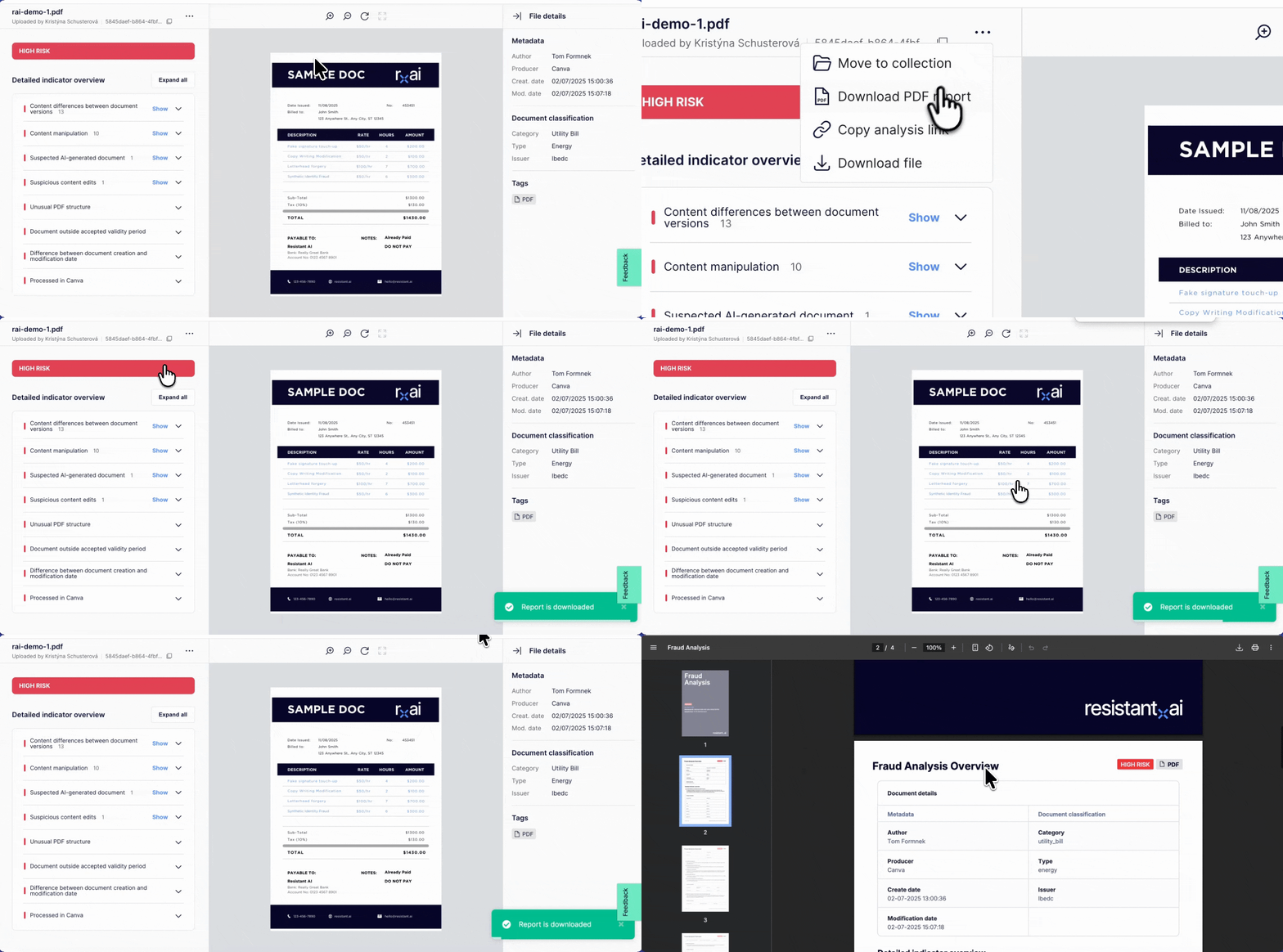
 ## Exports and reporting
If enabled for your tenant, analysts can generate/download a **PDF report** for sharing or audit trails.
## Exports and reporting
If enabled for your tenant, analysts can generate/download a **PDF report** for sharing or audit trails.
 ## Recommended analyst workflow (practical)
1. Open the case via deep link: `/analysis/`
2. Check the overall verdict to understand priority
3. Review the indicator list from highest impact to lowest
4. Use **Show** to verify evidence in the document
5. Review metadata/classification for consistency
6. Export a report if required by your process
## Recommended analyst workflow (practical)
1. Open the case via deep link: `/analysis/`
2. Check the overall verdict to understand priority
3. Review the indicator list from highest impact to lowest
4. Use **Show** to verify evidence in the document
5. Review metadata/classification for consistency
6. Export a report if required by your process