

If your organization uses local Okta authentication (email/password), admins have additional capabilities not covered here. Contact Support if you’re unsure which authentication method your organization uses.
What SSO admins can do
Admins with SSO authentication can access the Admin Settings → User management section to:- View the user list — see all users provisioned for the tenant
- Search and filter users — find users by name, email, or role
- View user details — see assigned roles, account creation date, and email
What SSO admins cannot do
User management actions remain controlled by your identity provider (IdP):- Cannot invite new users — users must be provisioned in your IdP and assigned to the Resistant Documents SAML/OIDC application
- Cannot change user roles — roles are mapped via the
documents_rolesSAML/OIDC attribute configured in your IdP - Cannot remove users — user access must be revoked in your IdP by unassigning the application or removing the user
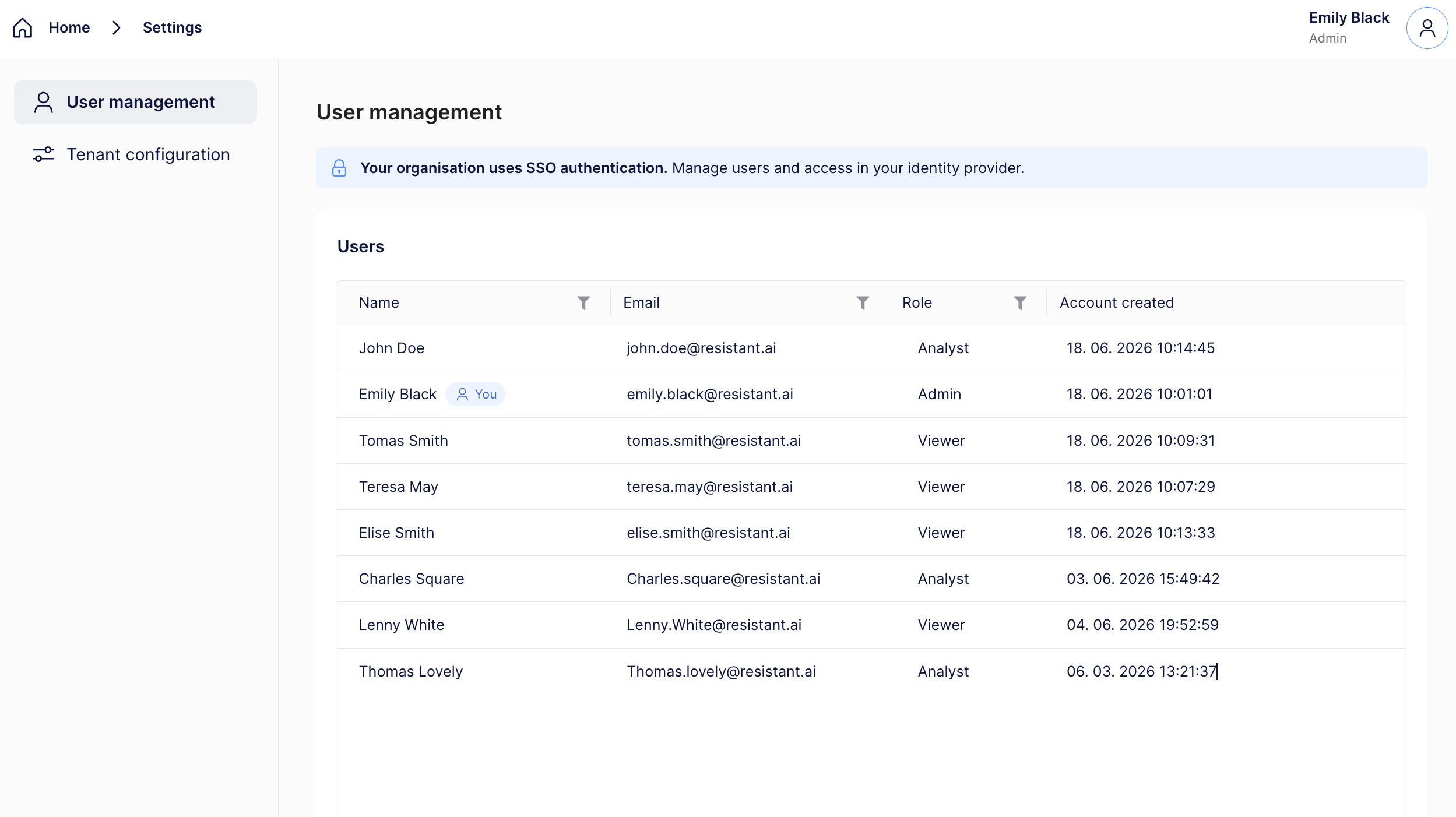
User management UI (SSO)
When an admin opens Admin Settings → User management, they see:- A banner indicating “Your organization uses SSO authentication. Manage users and access in your identity provider.”
- A table listing all users with:
- Name
- Role (
Viewer,Analyst, orAdmin) - Account created date
What’s coming
Future releases will add the following read-only visibility features for admins:- Last login — see when each user last accessed the Web UI
- User statistics — view the number of Viewers, Analysts, and Admins provisioned for your tenant
- Tenant configuration overview — quick reference for enabled features and workspace settings
How to manage users (SSO tenants)
To add, remove, or change user roles:- Go to your identity provider (e.g., Okta, Microsoft Entra ID, Google Workspace)
- Assign or unassign users to the Resistant Documents SAML/OIDC application
- Update the
documents_rolesattribute to change roles:<tenant_id>_ro→ Viewer (read-only)<tenant_id>_rw→ Analyst (upload and review)<tenant_id>_admin→ Admin (view user list)
See SSO setup (SAML 2.0) or SSO setup (OIDC) for role attribute configuration details.
FAQ
Why can't I change roles in the Web UI?
Why can't I change roles in the Web UI?
When SSO is enabled, your identity provider is the authoritative source for user access and roles. This ensures all access control follows your organization’s security policies and compliance requirements.Role changes made in the Web UI would conflict with IdP-managed roles and could create security gaps.
Why do I see users I don't recognize?
Why do I see users I don't recognize?
If your organization recently migrated from local Okta (email/password) to SSO, some users may still authenticate via the legacy method.A warning banner will appear if legacy users exist. Contact Support at support@resistant.ai if you need help migrating these accounts to SSO.
How quickly do role changes take effect?
How quickly do role changes take effect?
Role changes made in your IdP take effect on the user’s next login to the Web UI.If a user is already logged in, they may need to log out and back in, or wait for their session to expire (typically 24 hours).
Can I export the user list?
Can I export the user list?
The user list is currently view-only in the Web UI. If you need a CSV export or reporting, contact your Resistant AI Customer Success Manager.
What if I need to add an admin urgently?
What if I need to add an admin urgently?
Update the
documents_roles attribute in your IdP to include <tenant_id>_admin for the target user. The change takes effect on their next login (usually within minutes).If you need immediate access and cannot modify IdP attributes quickly, contact Support at support@resistant.ai.Do admins need special permissions in the IdP?
Do admins need special permissions in the IdP?
No. The Admin role in Resistant Documents only grants access to view the user list in Admin Settings. It does not require elevated IdP permissions.Admins cannot modify user access or roles within the Web UI.
Next steps
- SSO setup (SAML 2.0) — configure SAML attributes and role mapping
- SSO setup (OIDC) — configure OIDC claims and role mapping
- Accessing the Web UI — URL formats, deep links, and testing vs production