

If your organization uses SSO authentication (SAML 2.0 or OIDC), see Admin settings (SSO-managed tenants) instead. Contact Support at support@resistant.ai if you’re unsure which authentication method your organization uses.
What local password admins can do
Admins with password authentication have full user management capabilities in Admin Settings → User management:- Invite new users — send email invitations to new team members
- View all users — see the complete user list with role, email, account creation date, and last login
- Change user roles — promote or demote users between Viewer, Analyst, and Admin
- Delete users — remove users who no longer need access
- View user statistics — see the total count of Admins, Analysts, and Viewers
User management UI
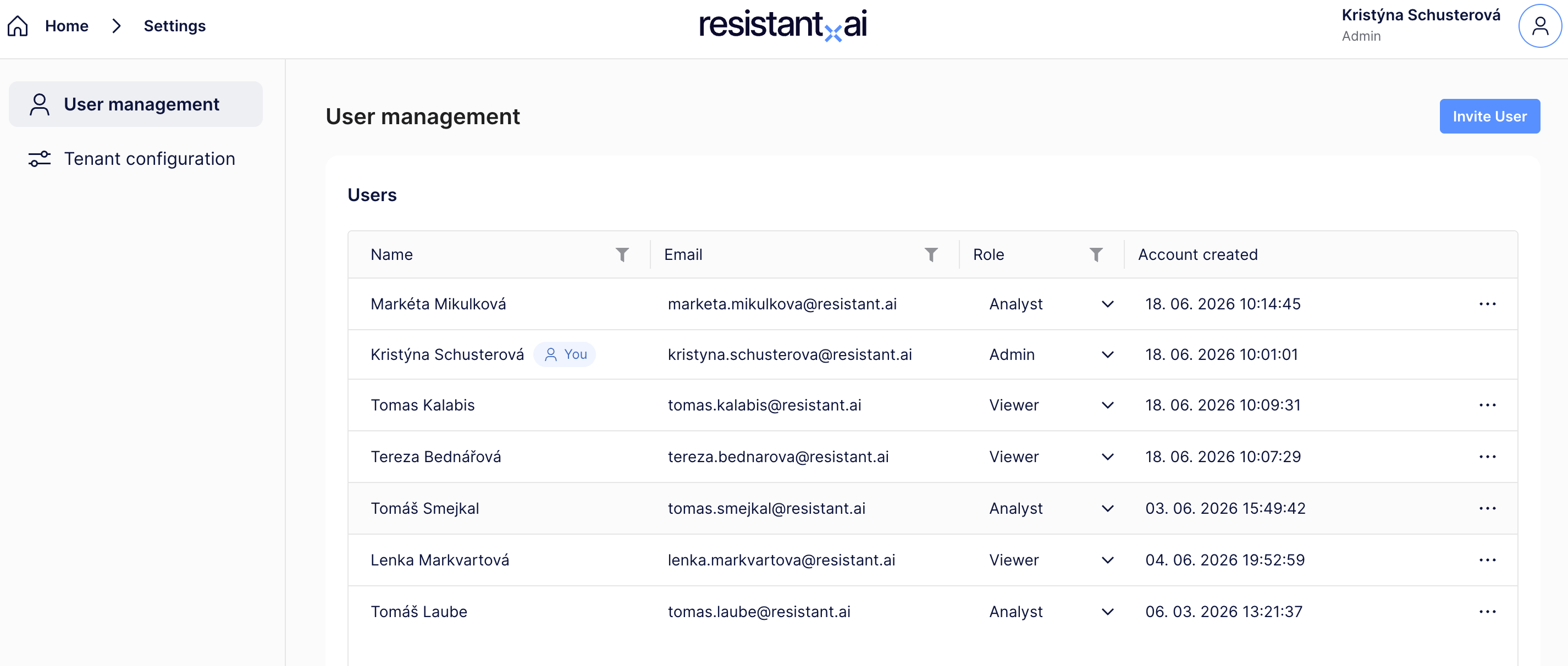
When an admin opens Admin Settings → User management, they see:- User statistics at the top:
- Number of Admins
- Number of Analysts
- Number of Viewers
- User table with:
- Name
- Role (Viewer, Analyst, or Admin) — editable via dropdown
- Account created date
- Last login timestamp
- Actions menu (three-dot icon) for deleting users
- Invite User button (top-right) for adding new users
How to invite a new user
- Click Invite User (top-right blue button)
- Enter the user’s:
- Email address (must be a valid business email)
- Full name (first and last name)
- Role (select Viewer, Analyst, or Admin)
- Click Send Invitation
- The user receives an email with an activation link
- The user completes account activation by setting their password
- The user can now log in with their email and password
How to change a user’s role
- Locate the user in the user table
- Click the Role dropdown in their row
- Select the new role:
- Viewer — can only view analysis results (read-only)
- Analyst — can upload documents and view results (read-write)
- Admin — can manage users and view results (full access)
- The role change takes effect immediately
If the user is currently logged in, they may need to refresh the page or log out and back in to see the updated permissions.
How to delete a user
- Locate the user in the user table
- Click the three-dot menu (⋯) in the user’s row
- Select Delete user
- Confirm the deletion in the dialog
- The user is removed immediately and can no longer access the Web UI
User roles explained
Admins inherit Analyst permissions (can upload and view results) in addition to user management capabilities.
User statistics
The user statistics panel shows real-time counts of:- Admins — users with Admin role
- Analysts — users with Analyst role
- Viewers — users with Viewer role (read-only)
- Verify role distribution matches your organizational structure
- Track license usage (if your contract has role-based limits)
- Audit access levels for compliance reporting
Initial admin provisioning
The first Admin user must be provisioned by the Resistant AI Support team during your organization’s onboarding. For new customers:- During onboarding, Resistant AI Support creates the first Admin account
- You receive an invitation email with an activation link
- Activate your account by setting a password
- Log in and start inviting additional users
- Contact Support at support@resistant.ai
- Specify:
- Your tenant name/ID
- The email address for the user who should become Admin
- Stage (Testing or Production)
- Support promotes the user to Admin role
- You can then manage users directly
Password vs SSO tenants
If your organization migrates from local password to SSO authentication, existing local users remain accessible until Resistant AI Support completes the migration. Contact Support if you plan to switch authentication methods.
How to access Admin Settings
Admins can access Admin Settings from the user profile menu in the top-right corner of the Web UI.- Click your profile icon (top-right corner, shows your initials or avatar)
- Select Admin Settings from the dropdown menu
- Click User management in the left sidebar
The Admin Settings option only appears for users with the Admin role. Viewers and Analysts will not see this menu item.
FAQ
Can I invite users to both Testing and Production?
Can I invite users to both Testing and Production?
Testing and Production are separate tenants with separate user lists.To give a user access to both environments, an Admin in each environment must invite them separately (or the same Admin if they have access to both tenants).
What happens if I delete the last Admin?
What happens if I delete the last Admin?
Do not delete the last Admin user. If you accidentally remove all Admins, you must contact Support at support@resistant.ai to provision a new Admin.Best practice: maintain at least two Admin users to avoid lockout.
Can a user change their own password?
Can a user change their own password?
Yes. Users can reset their password using the “Forgot password” link on the login page.Admins cannot reset passwords for other users — password resets are self-service only.
How long is the invitation link valid?
How long is the invitation link valid?
Invitation links expire after 2 days. If a user does not activate their account within 2 days, resend the invitation by deleting the user and inviting them again.
Can I bulk-invite users?
Can I bulk-invite users?
Bulk invitation is not currently supported in the Web UI.If you need to onboard a large team (10+ users), contact your Resistant AI Customer Success Manager to coordinate bulk provisioning.
Do I need permission to invite Admins?
Do I need permission to invite Admins?
Any Admin can invite new Admins. There is no hierarchical restriction — all Admin users have equal user management permissions.
Can I export the user list?
Can I export the user list?
The user list is currently view-only in the Web UI. If you need a CSV export for compliance or reporting, contact your Resistant AI Customer Success Manager.
What if a user never receives the invitation email?
What if a user never receives the invitation email?
Check the following:
- The email may be in the user’s spam/junk folder
- Verify the email address was entered correctly
- Corporate email filters may block emails from Resistant AI’s sending domain
Can I see what a deleted user submitted?
Can I see what a deleted user submitted?
Yes. Deleting a user removes their login access but does not delete their submitted documents or analysis history.The submission history remains in the system for audit and compliance purposes.
Next steps
- Authentication options — compare local password vs SSO authentication
- Admin settings (SSO-managed tenants) — user management for SSO customers
- Accessing the Web UI — URL formats, deep links, and testing vs production